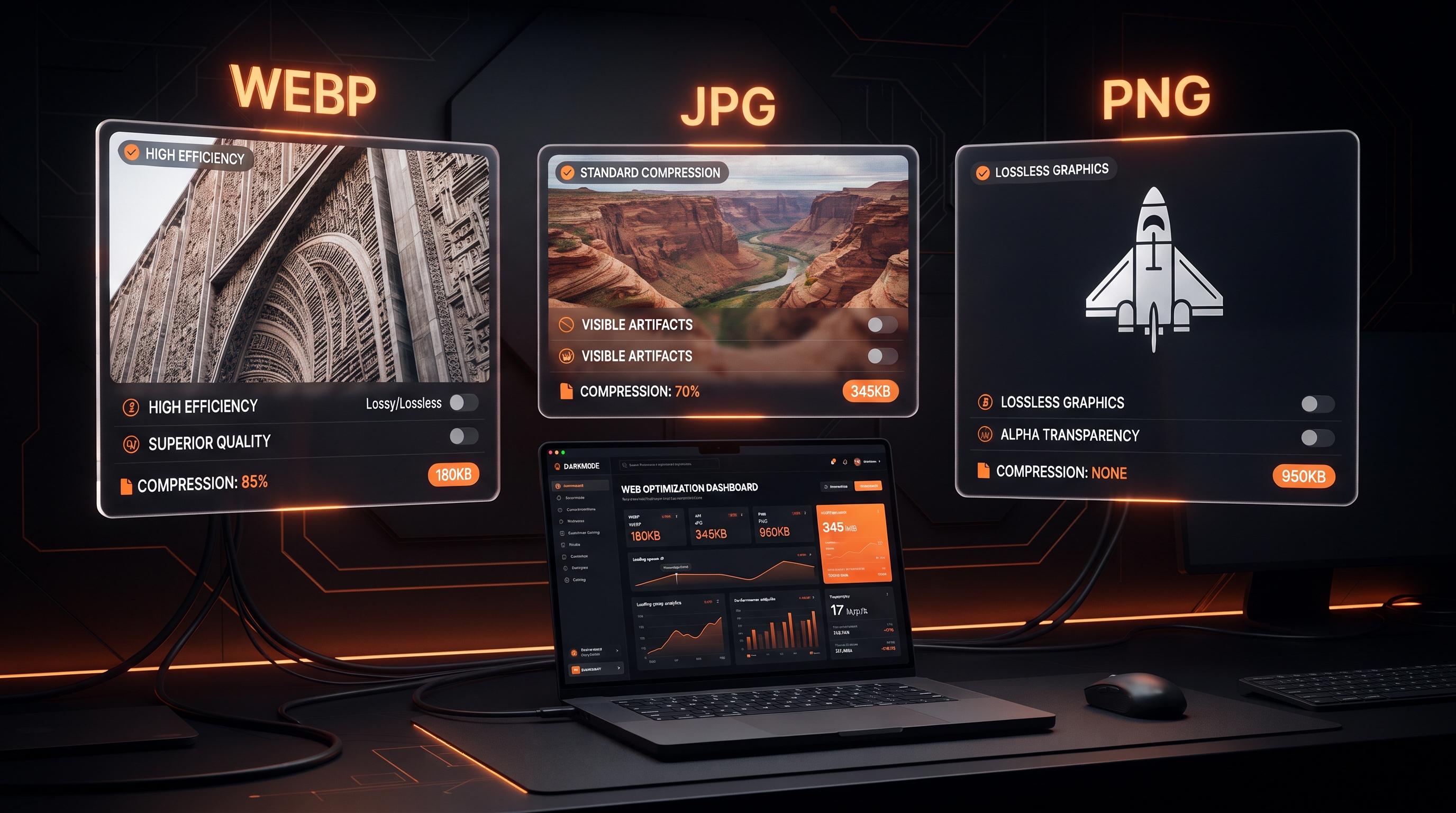
WebP vs JPG vs PNG: Which Image Format Is Best for Websites?
Choosing the right image format can have a surprisingly large impact on a website.
An image may look perfectly fine on your computer, but if it is several megabytes in size, it can slow down your website, increase bandwidth usage, and create a poor experience for visitors on slower connections.
This is why choosing between WebP, JPG, and PNG matters.
But which one should you use?
Is WebP better than JPG?
Should you use PNG or JPG for photos?
Is WebP always the best image format for websites?
The answer depends on the type of image you're working with.
In this guide, we'll compare WebP vs JPG vs PNG based on file size, image quality, compression, transparency, browser support, website performance, and practical use cases.
By the end, you'll know exactly when to use WebP, JPG, or PNG on your website.
WebP vs JPG vs PNG: Quick Comparison
| FeatureWebPJPG/JPEGPNG | |||
| Compression | Lossy + Lossless | Lossy | Lossless |
| File Size | Usually smaller | Medium | Usually larger |
| Photo Quality | Excellent | Excellent | Excellent |
| Transparency | Yes | No | Yes |
| Best For Photos | Yes | Yes | Usually no |
| Best For Logos | Yes | No | Yes |
| Best For Screenshots | Yes | No | Yes |
| Animation | Yes | No | APNG |
| Website Performance | Excellent | Good | Usually lower |
| Browser Support | Broad | Excellent | Excellent |
WebP supports both lossy and lossless compression, transparency, and animation, while JPG is primarily a lossy format and PNG uses lossless compression. Modern browsers broadly support WebP, although fallback strategies can still be useful for compatibility.
What Is WebP?
WebP is a modern image format designed to provide high visual quality while reducing image file sizes.
It supports both lossy and lossless compression, along with transparency and animation.
One of its biggest advantages is file size.
According to MDN, lossy WebP images are typically around 25–35% smaller than comparable JPEG images, while lossless WebP can also significantly reduce file size compared with PNG.
That makes WebP particularly useful for websites.
WebP is a good choice for:
- Website photos
- Blog featured images
- Product images
- Thumbnails
- Screenshots
- Illustrations
- Images requiring transparency
- Animated images
For many websites, WebP can be an excellent default format for raster images.
What Is JPG?
JPG, also known as JPEG, is one of the most widely used image formats on the web.
It uses lossy compression, meaning some image information is discarded to reduce file size.
For photographs, this usually works well because small changes in image detail may not be noticeable to the human eye.
JPG is particularly effective for images containing:
- Photographs
- People
- Landscapes
- Travel images
- Product photography
- Complex color gradients
- Real-world scenes
JPG has excellent browser compatibility and remains a useful format for photographs and as a fallback when necessary.
What Is PNG?
PNG, or Portable Network Graphics, is a lossless image format.
Unlike JPG, PNG preserves image information without the same type of lossy compression.
One of its biggest advantages is transparency.
PNG is particularly useful for:
- Logos
- Icons
- Screenshots
- Diagrams
- Graphics
- Interface elements
- Images requiring transparent backgrounds
- Images containing sharp text and edges
PNG is often larger than JPG for photographs, which makes it less suitable when your primary goal is minimizing file size.
For images where precise reproduction and transparency are important, however, PNG can still be the better choice.
WebP vs JPG: Which Is Better?
For most website photographs, WebP is generally the better choice when your goal is reducing file size while maintaining good visual quality.
WebP advantages
- Smaller files
- Supports lossy compression
- Supports lossless compression
- Supports transparency
- Supports animation
- Excellent modern browser support
JPG advantages
- Extremely widespread compatibility
- Excellent for photographs
- Simple and well-established
- Useful as a fallback
If you're uploading a large photograph to a modern website, converting it from JPG to WebP can often reduce its file size without a noticeable visual difference.
Winner for most website photos: WebP
However, JPG is still useful when you need a simple, highly compatible photographic format.
JPG vs PNG: Which Is Better?
This comparison depends heavily on the image.
For a photograph:
JPG usually wins.
For a logo, screenshot, or graphic containing sharp edges:
PNG may win.
Why?
JPG's lossy compression can introduce artifacts around text, sharp edges, and detailed graphics.
PNG uses lossless compression, making it better when preserving exact visual details is important.
Use JPG for:
- Photos
- Blog images
- Travel photography
- Product photography
- Large photographic backgrounds
Use PNG for:
- Logos
- Transparent graphics
- Screenshots
- Diagrams
- Sharp UI graphics
WebP vs PNG: Which Is Better?
This is another situation where WebP often has an advantage.
WebP supports both lossy and lossless compression and also supports transparency.
That means you don't necessarily have to choose PNG simply because your image has a transparent background.
For many transparent graphics, a properly optimized WebP can provide a smaller file than PNG while maintaining good quality.
WebP is usually better when:
- You want smaller files
- The image is used heavily across your website
- Performance matters
- You need transparency but want better compression
PNG is useful when:
- You need exact lossless reproduction
- You are dealing with certain graphics or workflows where PNG is the required format
- Compatibility with older systems or specific software matters
WebP vs JPG vs PNG for Website SEO
Image format itself isn't a magic SEO ranking factor.
However, image optimization can influence website performance and user experience.
Large images can increase the amount of data a browser needs to download.
Using a more efficient image format can reduce unnecessary image bytes.
For example:
Large JPG
→ Convert to WebP
→ Reduce file size
→ Faster download
→ Potentially better page experience
This is why choosing the right image format should be part of your overall website image optimization strategy.
But format selection isn't the only factor.
You should also consider:
- Image dimensions
- Compression quality
- Responsive images
- Lazy loading
- Image delivery
- Caching
- Proper width and height
- Removing unnecessary metadata
MDN also recommends specifying image dimensions so the browser can calculate the image's aspect ratio early and reserve the appropriate space while the image loads.
Does WebP Have Better Quality Than JPG?
Not necessarily.
The important distinction is quality at a particular file size.
A badly compressed WebP can look worse than a high-quality JPG.
Likewise, an aggressively compressed JPG can look terrible compared with a properly encoded WebP.
The real advantage of WebP is that it can often provide similar visual quality at a smaller file size.
So don't simply ask:
Which format has better quality?
Instead ask:
Which format gives me the visual quality I need at the smallest reasonable file size?
That's a much better approach to website image optimization.
When Should You Use WebP?
Use WebP when you want a modern, efficient image format for your website.
Recommended WebP use cases:
Blog featured images
WebP can significantly reduce the size of large blog images.
Product images
Useful for eCommerce websites where many images need to load.
Website thumbnails
Smaller files can help pages containing many images.
Marketing graphics
Useful when you need good quality without unnecessarily large files.
Transparent images
WebP supports transparency.
Animated images
WebP supports animation as well.
When Should You Use JPG?
Use JPG primarily for photographs when you want a simple and widely supported format.
Examples include:
- Travel photos
- Portraits
- Product photos
- Blog photography
- Background photographs
- Real-world scenes
JPG remains a practical choice because it provides effective lossy compression and broad compatibility.
When Should You Use PNG?
PNG is best when image accuracy and transparency are more important than minimizing file size.
Use PNG for:
- Logos
- Screenshots
- Charts
- Diagrams
- UI graphics
- Transparent images
- Graphics with sharp edges
For simple logos and interface graphics, you should also consider SVG when a vector version is available. MDN recommends SVG for UI elements, icons, and diagrams that need to remain sharp at different sizes.
Best Image Format for Websites
So, what's the best image format for websites?
There isn't one format that is perfect for every image.
A practical approach is:
Use WebP for:
Most website photographs and raster images
Use JPG for:
Photographs when you specifically need or prefer JPEG
Use PNG for:
Transparency, screenshots, diagrams, and graphics where lossless quality matters
Use SVG for:
Logos, icons, and scalable vector graphics
This approach gives you a balance between quality, file size, compatibility, and website performance.
Should You Convert All JPG and PNG Images to WebP?
Not necessarily.
Converting every image blindly isn't the goal.
Instead, check:
What type of image is it?
Does it need transparency?
How much detail does it contain?
How large is the current file?
Does converting it actually reduce the file size?
For example, converting a small PNG logo to WebP may not provide a meaningful benefit.
Likewise, a highly compressed JPG may not become dramatically smaller after conversion.
The goal is not:
"Everything must be WebP."
The goal is:
Use the most appropriate format and compression level for each image.
How to Optimize Images for Your Website
Choosing WebP, JPG, or PNG is only the first step.
Follow these practices for better website image optimization.
1. Resize Images Before Uploading
Don't upload a 5000px-wide image if your website only displays it at 1200px.
Resize it to a reasonable display size first.
2. Choose the Right Format
Use WebP for many modern website images, JPG for photographs when appropriate, and PNG for lossless graphics and transparency.
3. Compress Images
Compression can dramatically reduce file size.
The goal is to find the point where file size decreases without creating noticeable visual degradation.
4. Use Responsive Images
Different devices don't always need the same image dimensions.
A mobile visitor shouldn't necessarily download the same huge image intended for a desktop screen.
5. Use Lazy Loading
Images below the initial viewport can often be loaded when they're needed rather than immediately.
6. Specify Image Dimensions
Adding width and height information helps browsers reserve space and can reduce layout shifts.
7. Consider Modern Formats
WebP is a strong option for many websites, while AVIF can provide even stronger compression in supported environments. If you use formats with compatibility limitations, the HTML <picture> element can provide fallbacks.
How to Choose Between WebP, JPG and PNG
Use this simple decision process.
Is it a photograph?
Yes → WebP or JPG
Does it require transparency?
Yes → WebP or PNG
Is it a screenshot with text?
Yes → WebP or PNG
Is it a logo or icon?
Yes → SVG if available; otherwise WebP or PNG
Is it a large blog image?
Yes → WebP is usually a strong choice
Do you need maximum compatibility with an older environment?
JPG or PNG may be appropriate depending on the image.
For modern websites, WebP is broadly supported across current major browsers, while <picture> can be used when you want to offer alternative formats and fallbacks.
WebP vs JPG vs PNG: Final Verdict
There is no universal winner.
But for most modern websites, the practical choice is:
WebP → Best general-purpose choice for many website images
JPG → Excellent for photographs and simple compatibility
PNG → Best when lossless quality or transparency is important
And if a suitable vector version exists:
SVG → Best for logos, icons, and scalable graphics
The most important thing is not choosing one format for everything.
It's choosing the right format for the right image.
A properly optimized image can look excellent while using far less bandwidth than an unnecessarily large original file.
That's why WebP vs JPG vs PNG isn't just a question about image quality.
It's a question about performance, file size, compatibility, and the overall user experience of your website.
Frequently Asked Questions
Is WebP better than JPG?
For many website images, yes. WebP can provide similar visual quality at a smaller file size and supports features such as transparency and animation. JPG remains useful for photographs and as a widely compatible format.
Is WebP better than PNG?
For many web images, WebP can provide significantly better compression while still supporting transparency. PNG remains useful when exact lossless reproduction is important.
Should I use JPG or PNG for website images?
Use JPG primarily for photographs and PNG for screenshots, graphics, diagrams, logos, and images where transparency or lossless quality is important.
What is the best image format for websites?
For many modern websites, WebP is an excellent general-purpose choice. JPG remains useful for photographs, PNG for lossless graphics and transparency, and SVG for vector graphics.
Does WebP improve SEO?
WebP itself isn't a guaranteed SEO ranking boost. Its main benefit is efficient image delivery, which can help reduce page weight and support better website performance when images are properly optimized.
Is PNG higher quality than JPG?
PNG uses lossless compression, while JPG uses lossy compression. PNG can therefore preserve exact image information better, but that doesn't mean PNG is always visually better for photographs.
Should I convert all my website images to WebP?
No. Choose the format based on the image and your requirements. WebP is an excellent option for many images, but JPG, PNG, SVG, and other formats still have appropriate use cases